Policies
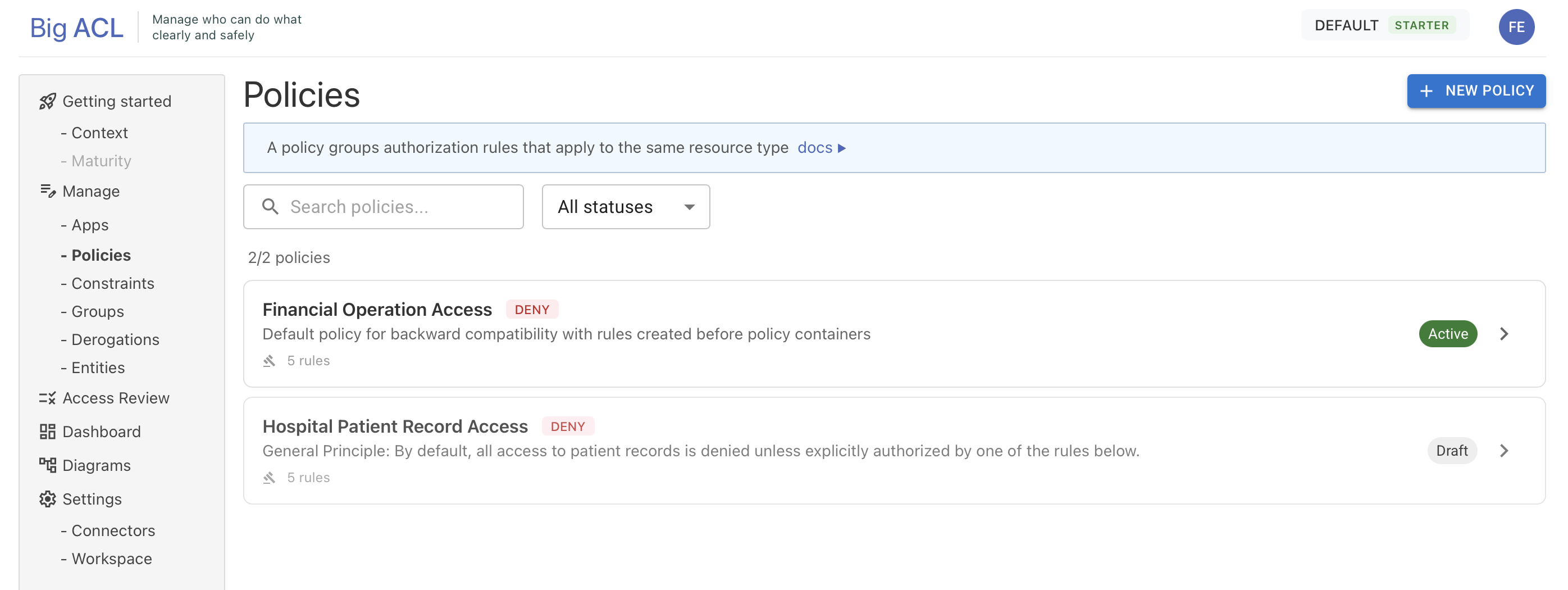
Policies are containers that group authorization rules addressing a specific business domain. Examples:
- Document Access Policy: rules governing access to documents
- Financial Approval Policy: rules for expense and payment approvals
- HR Data Policy: rules protecting employee personal information
A policy defines the scope of a coherent set of authorization rules and provides built-in verification tools.
Policy Attributes
Section titled “Policy Attributes”| Attribute | Description |
|---|---|
| Name | Name of the policy |
| Description | Business description |
| Status | DRAFT, ACTIVE, ARCHIVED |
| Default Effect | PERMIT or DENY — determines the default behavior when no rule applies |
Creating a Policy
Section titled “Creating a Policy”- Navigate to the Policies page
- Click New Policy
- Fill in the name, description, and default effect
- The policy is created in
DRAFTstatus
Policy Detail Screen
Section titled “Policy Detail Screen”The policy detail screen is organized into two zones:
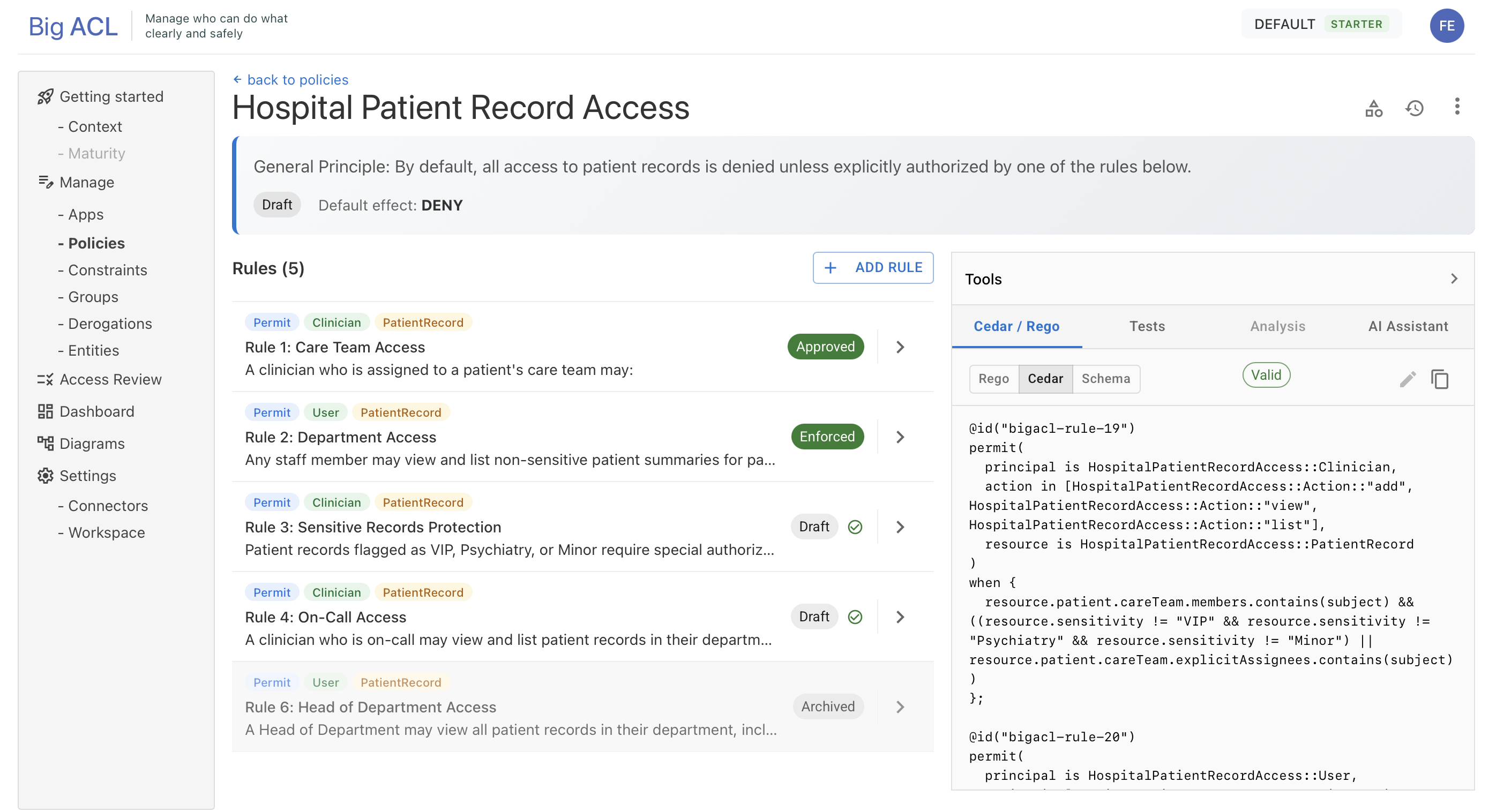
Toolbar:
- Config (gear icon): opens a dialog to configure the Entity Types (subjects and resources) associated with the policy
- Versions (history icon): opens a dialog to manage versions (create, validate, publish)
- Menu (⋮): actions such as Edit, Delete, etc.
Entity Type Configuration
Section titled “Entity Type Configuration”Each policy references entity types (defined in your schema) that can be used in its rules. This configuration is done via the Config dialog:
- Add or remove entity types (subjects and resources)
- Rules within the policy can only reference entity types configured in the policy
Version Management
Section titled “Version Management”Versions capture an immutable snapshot of your approved rules at a point in time for deployment. Each version follows a lifecycle: Draft → Validated → Published → Deprecated.
- Create a version: snapshot of all approved rules
- Validate a version: syntax and consistency checks
- Deploy a version: activate it in a target environment
Versions are accessible via the Versions dialog in the toolbar.
For full details on creating, validating, comparing, and exporting versions, see Policy Versions.
Policy Lifecycle
Section titled “Policy Lifecycle”A policy container itself has a lifecycle independent from its versions and deployments:
ACTIVE ←→ SUSPENDED → ARCHIVED ↓ (Restore → SUSPENDED)ACTIVE
Section titled “ACTIVE”The default operating state. Rules can be edited, versions created, and deployments managed.
Available actions: Suspend
SUSPENDED
Section titled “SUSPENDED”The policy is temporarily disabled. All deployments associated with this policy are affected. This state is useful during major restructuring or incident response.
Available actions: Resume (→ ACTIVE), Archive
A reason is required when suspending a policy.
ARCHIVED
Section titled “ARCHIVED”The policy is permanently retired from active use. It remains visible for audit purposes but can no longer be modified or deployed.
Available actions: Restore (→ SUSPENDED, then Resume → ACTIVE)
Actions by Status
Section titled “Actions by Status”| Action | ACTIVE | SUSPENDED | ARCHIVED |
|---|---|---|---|
| Edit rules | ✅ | — | — |
| Create versions | ✅ | — | — |
| Deploy / Promote | ✅ | — | — |
| Suspend | ✅ | — | — |
| Resume | — | ✅ | — |
| Archive | — | ✅ | — |
| Restore | — | — | ✅ |
Verify Panel
Section titled “Verify Panel”The Verify Panel is a collapsible panel on the right side of the screen. It allows you to verify and validate the policy in real time. It contains 4 tabs detailed below.
Tests Tab
Section titled “Tests Tab”Generates and executes test scenarios at the policy level (covering all rules).
- Automatic generation: Big ACL generates test scenarios in Gherkin format (Given/When/Then) by analyzing the rules and the data model
- Execution: click Run Tests to execute the scenarios
- Results: aggregated display (total, passed, failed) + per-scenario detail in accordion
Processing cycle:
NONE → GENERATING → READYREADY → RUNNING → READY* → ERRORThe interface automatically polls (every 3 seconds) during processing to display results in real time.
Impact Tab
Section titled “Impact Tab”Analyzes the impact of rule changes on existing authorization decisions.
- Summary: number of broken, fixed, and unchanged decisions
- Details: list of impacted tests, audit replay results
- AI Insights: automatic impact analysis
Processing cycle:
NONE → ANALYZING → READYREADY → ANALYZING → READY* → ERRORTranslations Tab
Section titled “Translations Tab”Generates Cedar and Rego code corresponding to the policy’s rules.
- Available formats: Rego, Cedar Schema, Cedar Policies
- Visualization: code with syntax highlighting
- Actions: copy to clipboard, regenerate
- Freshness: the translation can become
STALEif rules have changed since the last generation. A Regenerate button forces re-translation.
Processing cycle:
NONE → TRANSLATING → READYREADY → STALE → TRANSLATING → READY* → ERRORAssistant Tab (AI)
Section titled “Assistant Tab (AI)”The AI assistant analyzes the policy’s rules and suggests optimizations.
- Objective: enter a goal in natural language (e.g., “simplify document access rules”)
- Analysis: launch the analysis (asynchronous)
- Proposals: list of typed proposals with checkboxes
- Proposal types:
Merge(merge rules),Split(split a rule),Simplify(simplify), etc.
- Proposal types:
- Apply: select the desired proposals and click Apply to implement them
Processing Status
Section titled “Processing Status”Each policy maintains a processing state for its 3 asynchronous operations (tests, translation, impact). Visual badges in the interface indicate the current status. Automatic polling (3s) is triggered only when an operation is in progress.